> ## Documentation Index
> Fetch the complete documentation index at: https://docs.whop.com/llms.txt
> Use this file to discover all available pages before exploring further.
# Paid groups
> Learn how to offer a paid group on Whop.
Anyone can start a paid group. We recommend picking a niche using a tool like [this](https://originality.ai/blog/niche-idea-generator) or something that you are into, and then creating a paid group around it. Paid groups generally have a group chat, an announcements board, and cost people a monthly fee to join.
## Launch a paid group quickly
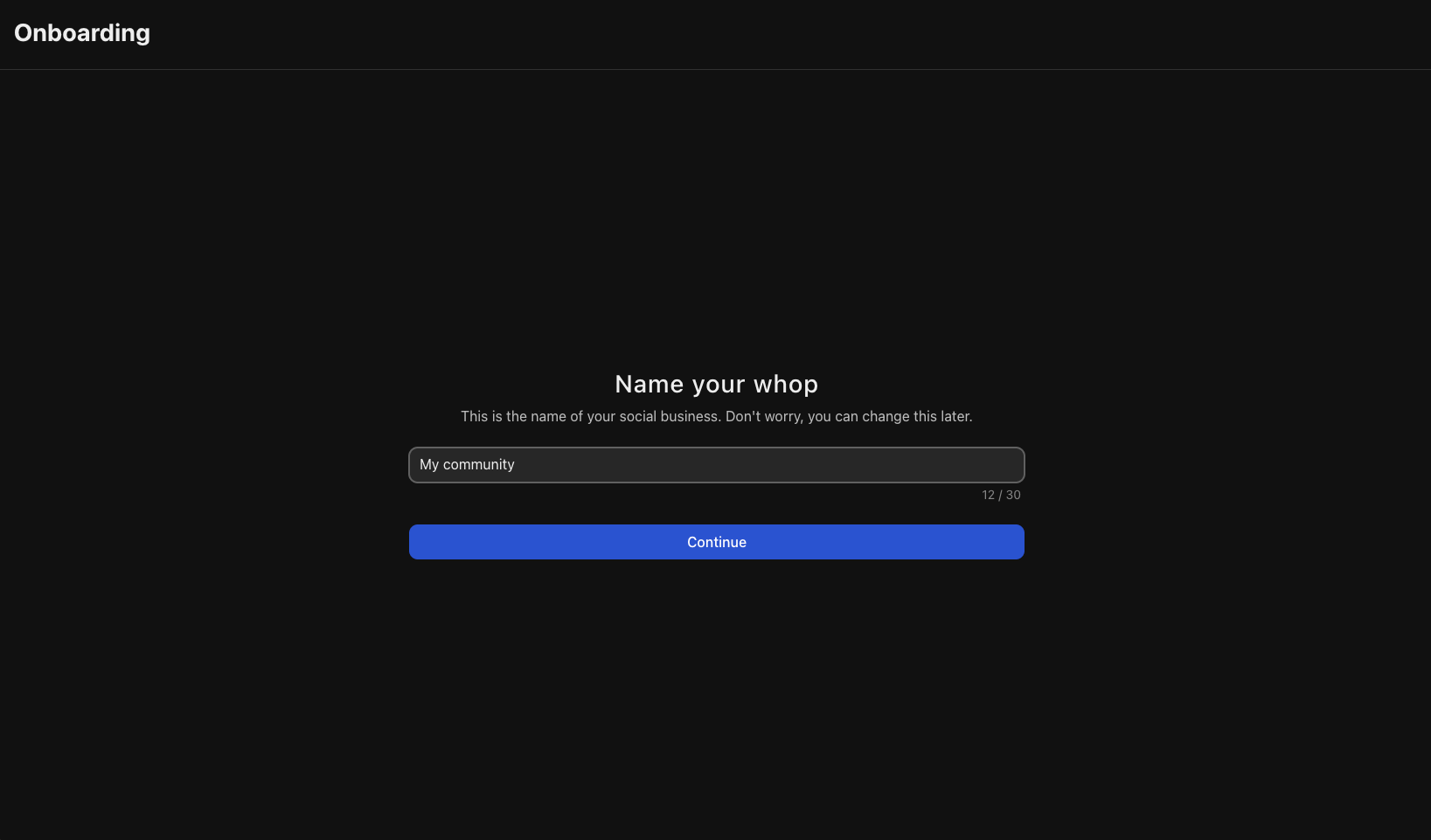
Head over to [**whop.com/sell**](https://whop.com/dashboard/start/):
* Choose a memorable name for your community
* Select your custom URL
* Complete the basic setup
Your whop is now live and ready to customize.
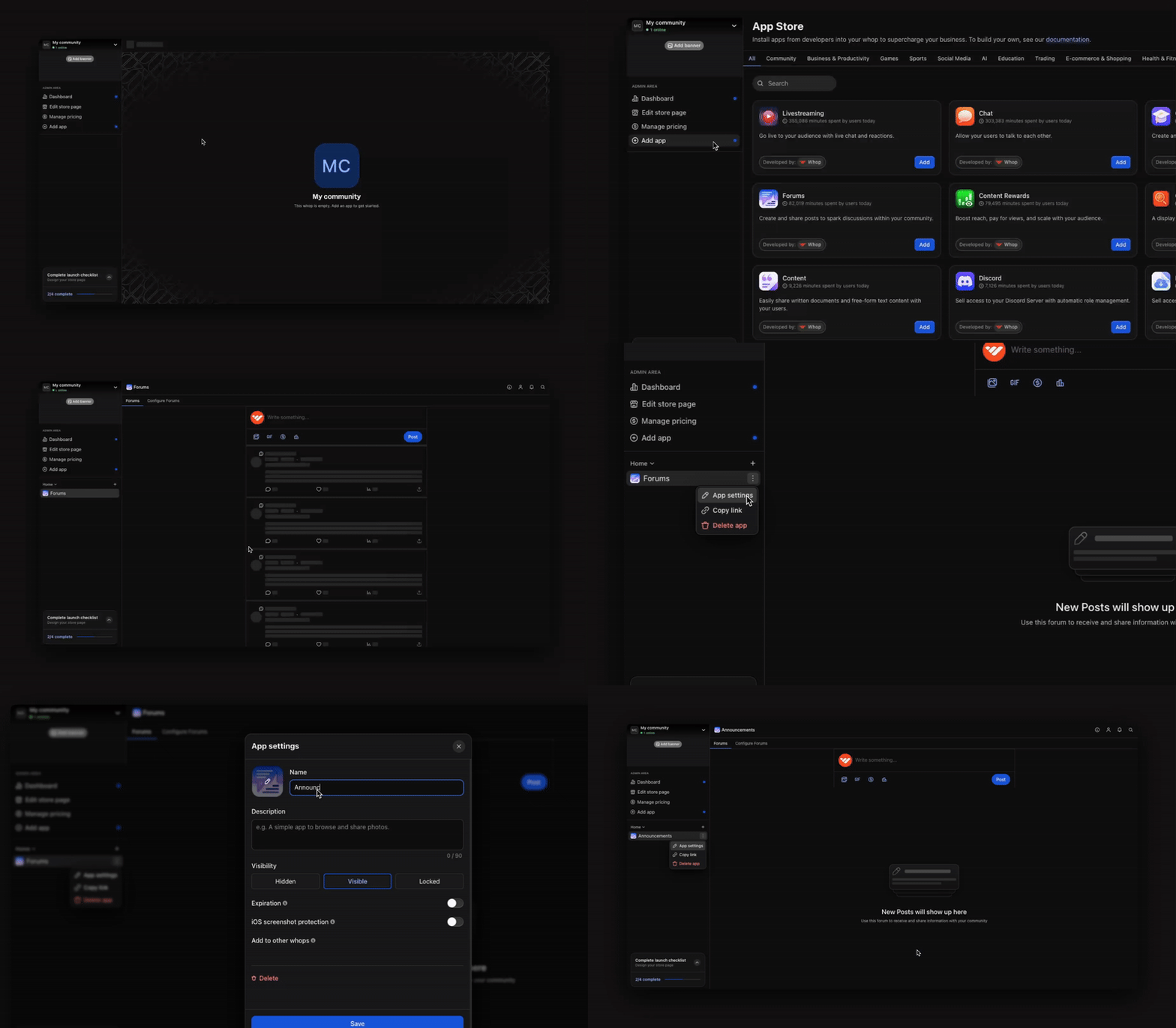
 The [**Forums**](https://whop.com/apps/app_dYfm2IdXhDMquv/install/) app is your primary channel for communicating with your entire community. This is where you'll share important updates, announcements, and valuable content that all members should see. Popular forum uses include:
* **Announcements:** Share important community updates, new features, and policy changes
* **Daily updates:** Post regular insights, tips, or industry news relevant to your community
* **Success stories:** Highlight member wins and achievements to inspire and motivate others
* **Weekly roundups:** Summarize key discussions, share upcoming events, or recap important content
* **Special offers:** Announce exclusive deals, promotions, or limited-time opportunities for members
* **New resources:** Alert members when you've added new courses, content, or tools
* **Event recaps:** Share highlights and key takeaways from live sessions or workshops
You can add the Forums app multiple times (and rename them to whatever you want) to keep your communications organized and easy to follow.
The [**Forums**](https://whop.com/apps/app_dYfm2IdXhDMquv/install/) app is your primary channel for communicating with your entire community. This is where you'll share important updates, announcements, and valuable content that all members should see. Popular forum uses include:
* **Announcements:** Share important community updates, new features, and policy changes
* **Daily updates:** Post regular insights, tips, or industry news relevant to your community
* **Success stories:** Highlight member wins and achievements to inspire and motivate others
* **Weekly roundups:** Summarize key discussions, share upcoming events, or recap important content
* **Special offers:** Announce exclusive deals, promotions, or limited-time opportunities for members
* **New resources:** Alert members when you've added new courses, content, or tools
* **Event recaps:** Share highlights and key takeaways from live sessions or workshops
You can add the Forums app multiple times (and rename them to whatever you want) to keep your communications organized and easy to follow.
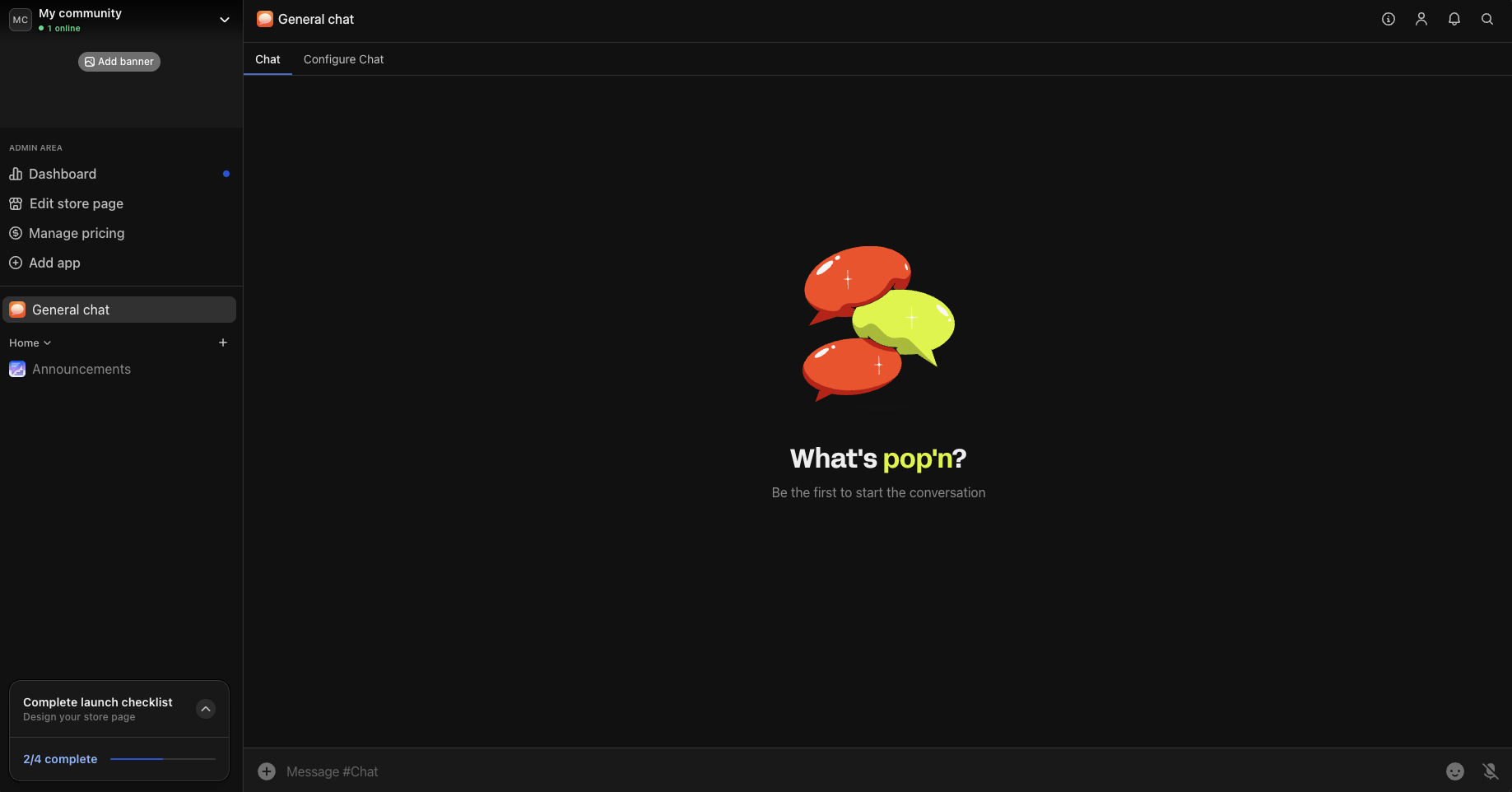
 Give your members a place to talk, share tips, and hype each other up. Add the [**Chat**](https://whop.com/apps/app_xml5hbizmZPgUT/install/) app and customize it for your community's needs:
* **General chat:** Main conversation space for casual discussions
* **Introductions:** Help new members connect and introduce themselves
* **Topic-specific chats:** Focus conversations around specific interests or goals
Add multiple Chat apps to create separate spaces for different topics or member groups.
Give your members a place to talk, share tips, and hype each other up. Add the [**Chat**](https://whop.com/apps/app_xml5hbizmZPgUT/install/) app and customize it for your community's needs:
* **General chat:** Main conversation space for casual discussions
* **Introductions:** Help new members connect and introduce themselves
* **Topic-specific chats:** Focus conversations around specific interests or goals
Add multiple Chat apps to create separate spaces for different topics or member groups.
 The most successful communities provide resources and learning materials that help their members achieve their goals. Here's how:
1. **Add the Courses app**
Create structured learning experiences with the [**Course**](https://whop.com/apps/app_xml5hbizmZPgUT/install/) app. After adding the Course app, click **Configure Courses**, then **Create your course now** to begin building your educational content. Popular course topics include:
* **Onboarding course**: Walk new members through your methodology and approach
* **Skill-building series**: Teach core concepts and techniques in your area of expertise
* **Call recordings**: Store all your live session recordings so members can access past content anytime
2. **Add the Content app**
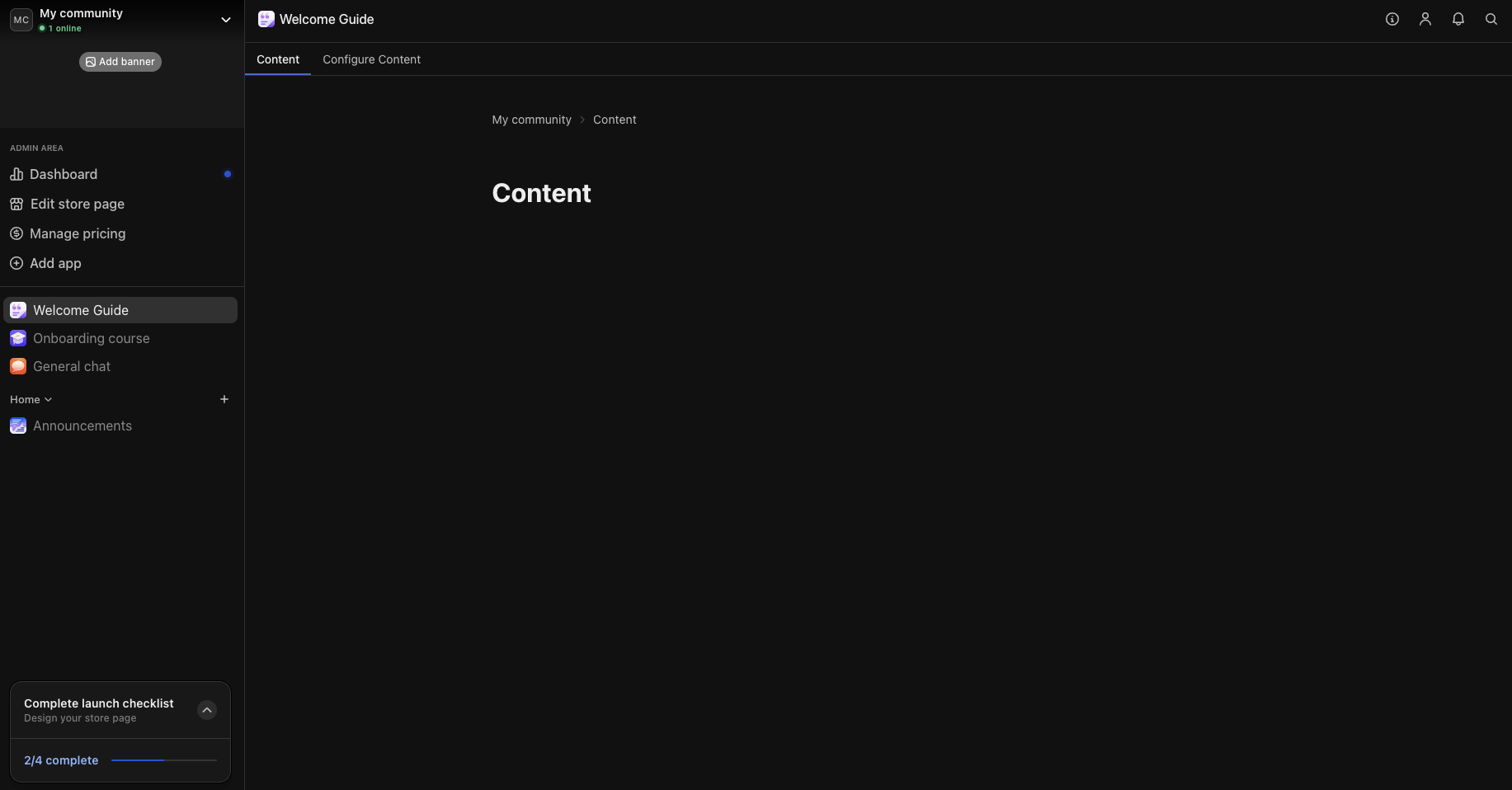
The [**Content**](https://whop.com/apps/app_mmjPLOxIgL1qxe/install/) app gives you unlimited flexibility to share text-based resources with your community:
* **Welcome guide:** Help new members understand how to get the most value from your community from day one
* **Community guidelines:** Set expectations for behavior and participation
* **Resource library:** Share templates, checklists, and reference materials
* **FAQ section:** Answer common questions to support members and reduce repetitive inquiries
The most successful communities provide resources and learning materials that help their members achieve their goals. Here's how:
1. **Add the Courses app**
Create structured learning experiences with the [**Course**](https://whop.com/apps/app_xml5hbizmZPgUT/install/) app. After adding the Course app, click **Configure Courses**, then **Create your course now** to begin building your educational content. Popular course topics include:
* **Onboarding course**: Walk new members through your methodology and approach
* **Skill-building series**: Teach core concepts and techniques in your area of expertise
* **Call recordings**: Store all your live session recordings so members can access past content anytime
2. **Add the Content app**
The [**Content**](https://whop.com/apps/app_mmjPLOxIgL1qxe/install/) app gives you unlimited flexibility to share text-based resources with your community:
* **Welcome guide:** Help new members understand how to get the most value from your community from day one
* **Community guidelines:** Set expectations for behavior and participation
* **Resource library:** Share templates, checklists, and reference materials
* **FAQ section:** Answer common questions to support members and reduce repetitive inquiries
 The **Events** app makes it easy to schedule and manage all your live sessions. Whether you're meeting in person, on Zoom, Google Meet, or using Whop's built-in livestream, your members can:
* See all upcoming events
* Add them to their calendar
* Get notified before the event starts
Use the [**Events**](https://whop.com/apps/app_RnVNENx5vtP8Zp/install/) app to schedule:
* **Weekly live sessions:** Regular training, Q\&A, or discussion sessions
* **Monthly workshops:** Deep-dive training on specific topics
* **Guest expert interviews:** Bring in outside experts to share knowledge
* **Community meetups:** Social events to strengthen member relationships
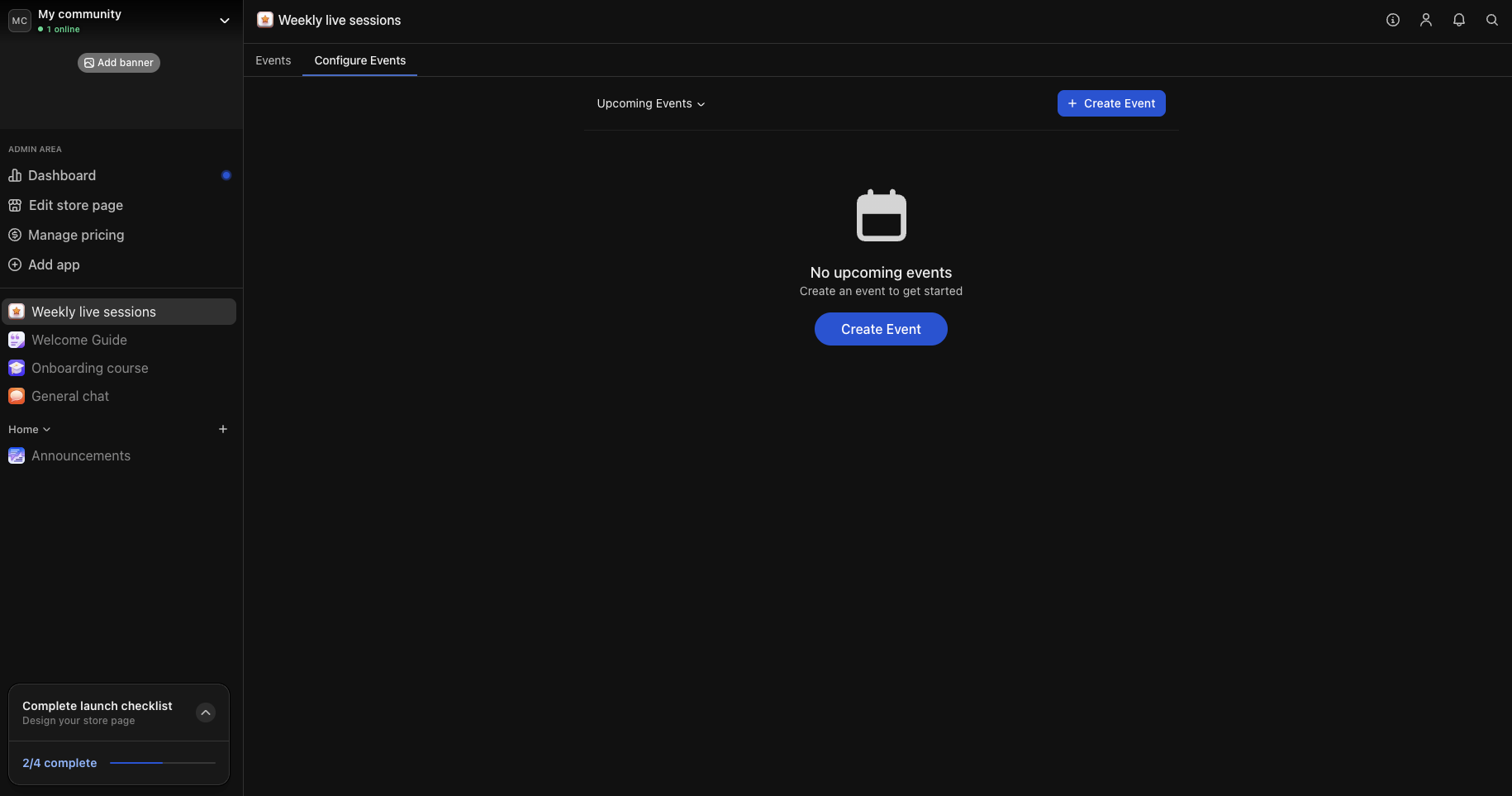
To schedule events, add the **Events** app from the Whop App Store, click **Configure Events**, then **Create event**.
Pro tip: Use Whop's built-in livestream feature to broadcast directly to your community. Members get notified when you go live, and streams are automatically saved for anyone who missed them.
The **Events** app makes it easy to schedule and manage all your live sessions. Whether you're meeting in person, on Zoom, Google Meet, or using Whop's built-in livestream, your members can:
* See all upcoming events
* Add them to their calendar
* Get notified before the event starts
Use the [**Events**](https://whop.com/apps/app_RnVNENx5vtP8Zp/install/) app to schedule:
* **Weekly live sessions:** Regular training, Q\&A, or discussion sessions
* **Monthly workshops:** Deep-dive training on specific topics
* **Guest expert interviews:** Bring in outside experts to share knowledge
* **Community meetups:** Social events to strengthen member relationships
To schedule events, add the **Events** app from the Whop App Store, click **Configure Events**, then **Create event**.
Pro tip: Use Whop's built-in livestream feature to broadcast directly to your community. Members get notified when you go live, and streams are automatically saved for anyone who missed them.
 Your product page is where people can learn about your offer. Click **Products** in your dashboard, then select **Create product** to open the editor. Use the fields and sections to customize your page:
* **Select the appropriate category:** Choose the category that best fits your business (e.g., AI, Coaching, or Events) to help people discover your product when browsing Whop.
* **Choose a product name and headline:** Make it clear what your product offers and who it’s for. Examples: “AI Tools for Marketers” or “Coding Bootcamp for Beginners.”
* **Write a compelling description:** Focus on the value customers receive and how your product helps them achieve results. Highlight benefits like expert guidance, exclusive resources, or community access.
* **Set pricing:** Choose between free, one-time, or recurring payments. Add multiple pricing options if you offer tiers or different levels of access.
* **Add features:** List what members will gain (e.g., “Weekly live workshops,” “Private chat access,” or “Course library”).
Set up your pricing to choose how much your members pay to get access to your community.
* Go to your whop > click **Products** > click **Add product**
Many communities choose a recurring fee (i.e. a subscription model) - for example:
* **\$30/month** for full access
* **\$200/year** for a yearly pass
To do this, select **Recurring** when creating your pricing and select weekly, monthly or yearly. You can also add multiple pricing options (for example, a weekly plan, a monthly plan, and a lifetime membership).
[Learn more about setting up pricing and products here](https://docs.whop.com/set-up-store-page).
Pro tip: Most of the largest communities on Whop use a free + premium model. This means setting up two 'Products' in your whop - one that's free to join, and another with paid access to premium apps (like chats, courses and resources).
## Next steps
Learn how to use Whop's tools and features to get more members in your
community.
Your product page is where people can learn about your offer. Click **Products** in your dashboard, then select **Create product** to open the editor. Use the fields and sections to customize your page:
* **Select the appropriate category:** Choose the category that best fits your business (e.g., AI, Coaching, or Events) to help people discover your product when browsing Whop.
* **Choose a product name and headline:** Make it clear what your product offers and who it’s for. Examples: “AI Tools for Marketers” or “Coding Bootcamp for Beginners.”
* **Write a compelling description:** Focus on the value customers receive and how your product helps them achieve results. Highlight benefits like expert guidance, exclusive resources, or community access.
* **Set pricing:** Choose between free, one-time, or recurring payments. Add multiple pricing options if you offer tiers or different levels of access.
* **Add features:** List what members will gain (e.g., “Weekly live workshops,” “Private chat access,” or “Course library”).
Set up your pricing to choose how much your members pay to get access to your community.
* Go to your whop > click **Products** > click **Add product**
Many communities choose a recurring fee (i.e. a subscription model) - for example:
* **\$30/month** for full access
* **\$200/year** for a yearly pass
To do this, select **Recurring** when creating your pricing and select weekly, monthly or yearly. You can also add multiple pricing options (for example, a weekly plan, a monthly plan, and a lifetime membership).
[Learn more about setting up pricing and products here](https://docs.whop.com/set-up-store-page).
Pro tip: Most of the largest communities on Whop use a free + premium model. This means setting up two 'Products' in your whop - one that's free to join, and another with paid access to premium apps (like chats, courses and resources).
## Next steps
Learn how to use Whop's tools and features to get more members in your
community.