> ## Documentation Index
> Fetch the complete documentation index at: https://docs.whop.com/llms.txt
> Use this file to discover all available pages before exploring further.
# Enable Apple Pay
> Enable Apple Pay for your embedded checkout by verifying your domain
Apple Pay allows customers to pay using their Apple Wallet, providing a seamless checkout experience on Safari and iOS devices. To enable Apple Pay on your embedded checkout, you need to verify ownership of your domain.
Domain verification is only required for [embedded
checkout](/payments/checkout-embed). Whop-hosted checkout pages already
support Apple Pay without any additional setup.
## Prerequisites
Before setting up Apple Pay, ensure you have:
* A domain where you're hosting the embedded checkout
* Access to your domain's DNS settings (for Whop-hosted verification) or file hosting (for self-hosted verification)
* `@whop/checkout@0.0.43` or later if using the `hideSubmitButton` option in React
## Choose a verification method
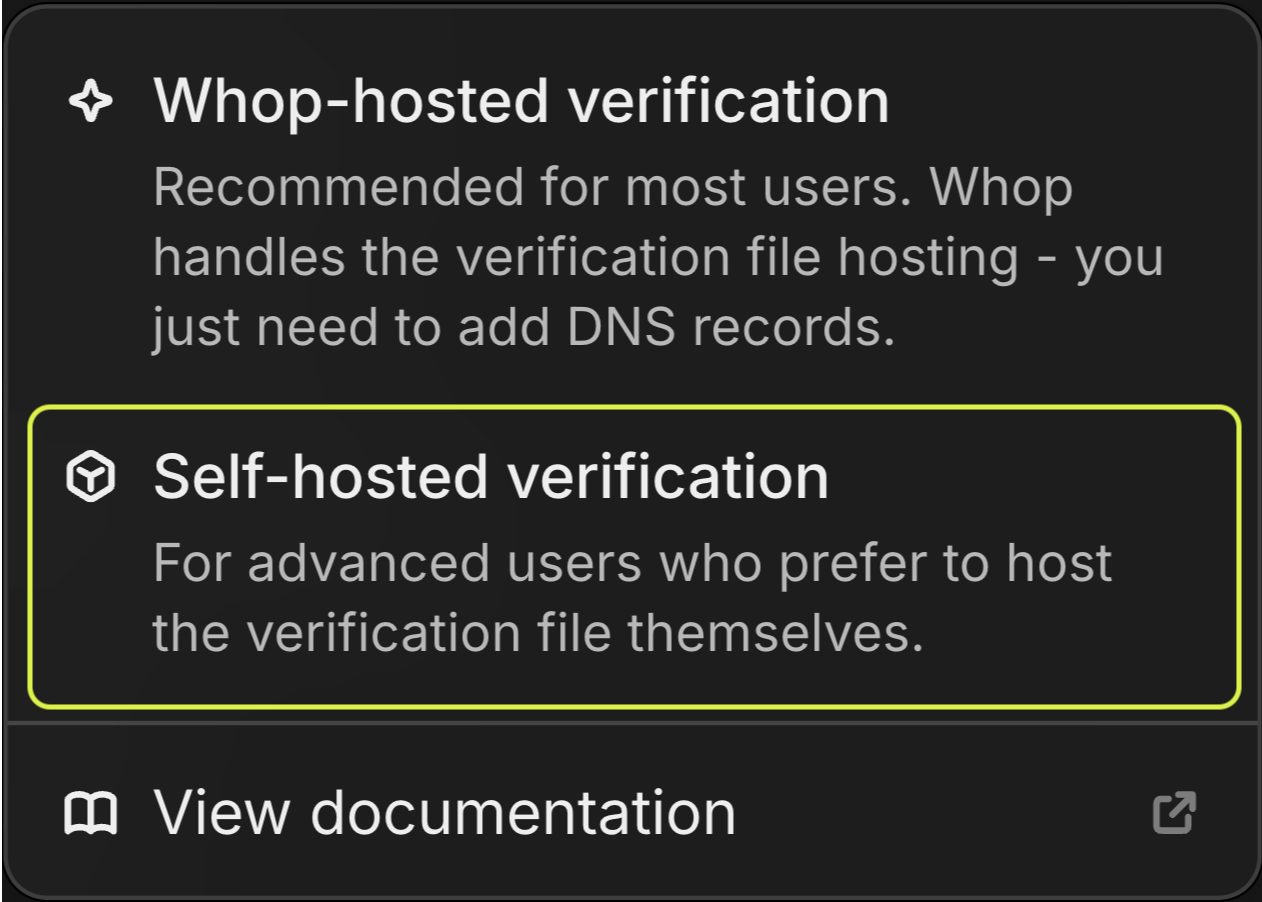
There are two ways to verify your domain for Apple Pay:
Recommended for most users. Whop handles the verification file hosting - you
just need to add DNS records.
For advanced users who prefer to host the verification file themselves.
## Whop-hosted verification
This method lets Whop host the Apple Pay verification file on your behalf. You'll temporarily point your domain to Whop's servers to complete verification, then revert your DNS settings.
This method requires temporary DNS changes that will cause your domain to be
unavailable for a few minutes during verification. Plan accordingly.
**Before you begin:** Take a screenshot or export your current DNS records for
the domain you're verifying. While the verification wizard will show revert
instructions after completion, these are best-effort and may not capture all
edge cases. Having your own backup ensures you can restore your DNS
configuration accurately.
### Step 0: Lower your DNS TTL (optional)
If the domain you're verifying is actively serving traffic, consider lowering the TTL (Time To Live) on the existing DNS record for that domain before starting. This ensures DNS changes propagate faster when you switch records and when you revert them. If you skip this step, downtime may last longer while DNS caches expire.
1. Find the existing A or CNAME record for the domain you want to verify
(e.g., the record for `checkout.yoursite.com`) 2. Lower its TTL to 60-300
seconds 3. Wait for the previous TTL duration to pass (e.g., if it was 1 hour,
wait 1 hour) so all DNS caches refresh 4. Then proceed with the verification
steps below
### Step 1: Open payment domains settings
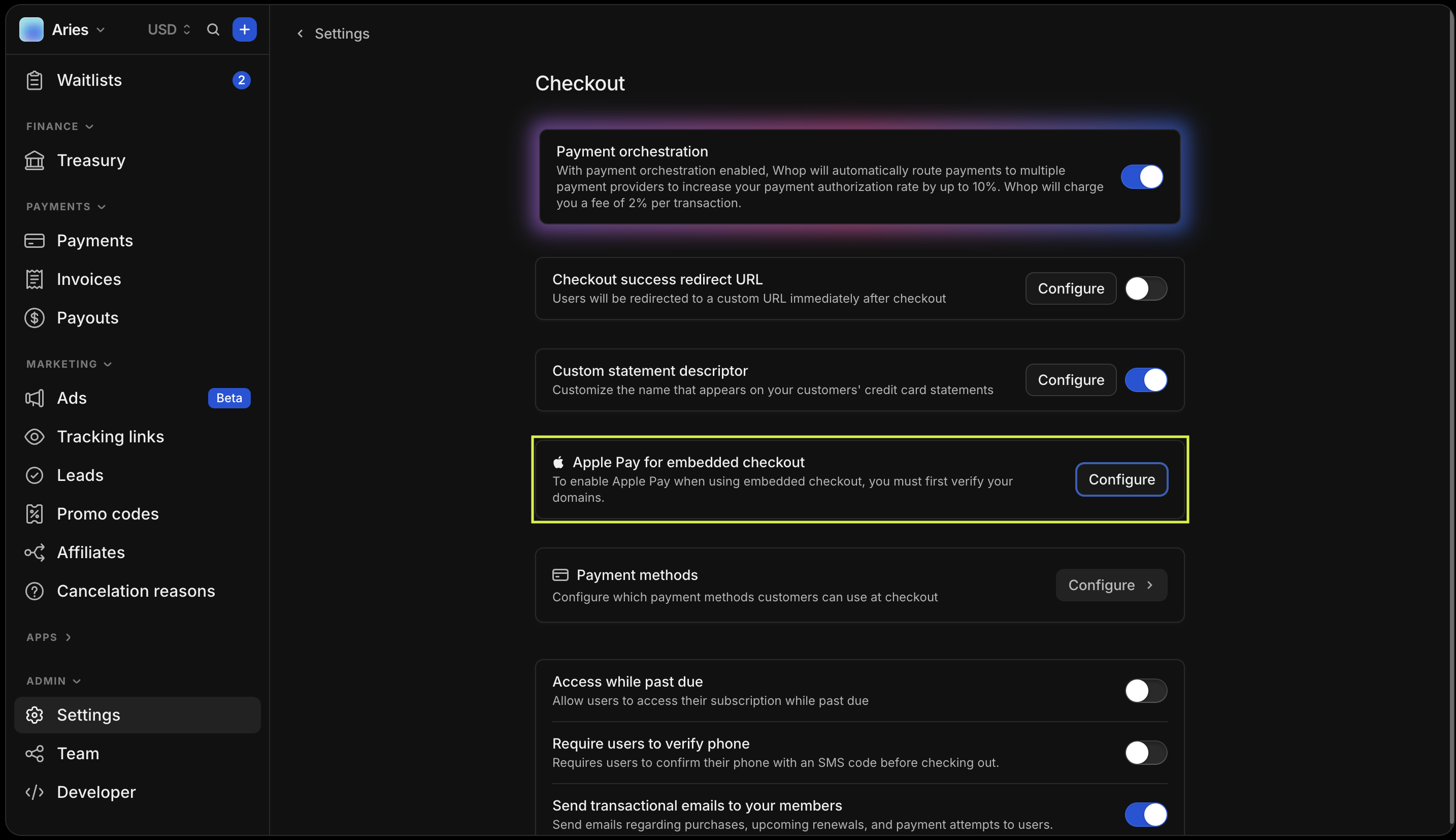
Navigate to your [checkout settings](https://whop.com/dashboard/settings/checkout/) and find the **Apple Pay for embedded checkout** section. Click **Configure** to open the domain management panel.
 ### Step 2: Add your domain
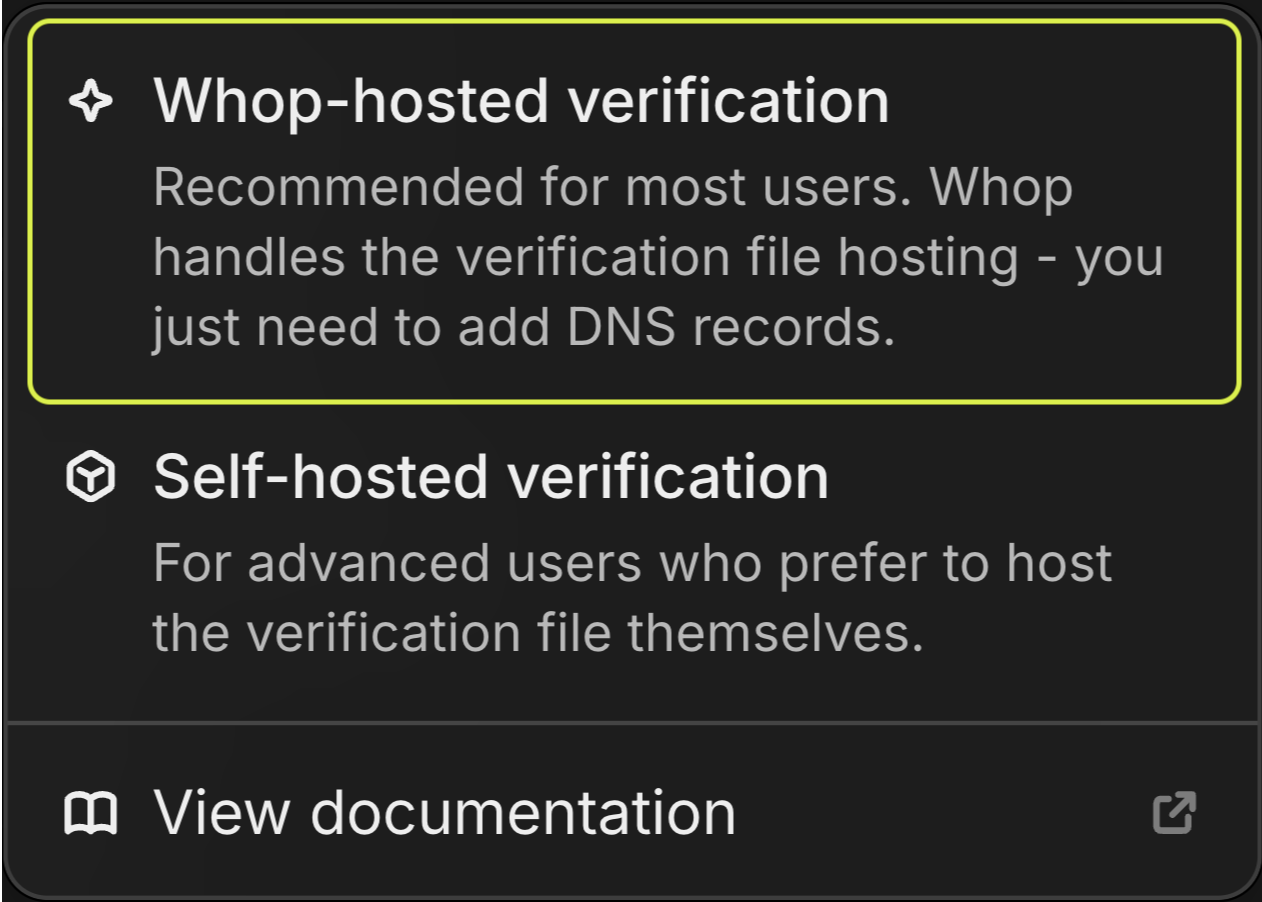
Click the **+** button (or **Add payment domain** if no domains exist yet). From the dropdown menu, select **Whop-hosted verification**.
### Step 2: Add your domain
Click the **+** button (or **Add payment domain** if no domains exist yet). From the dropdown menu, select **Whop-hosted verification**.
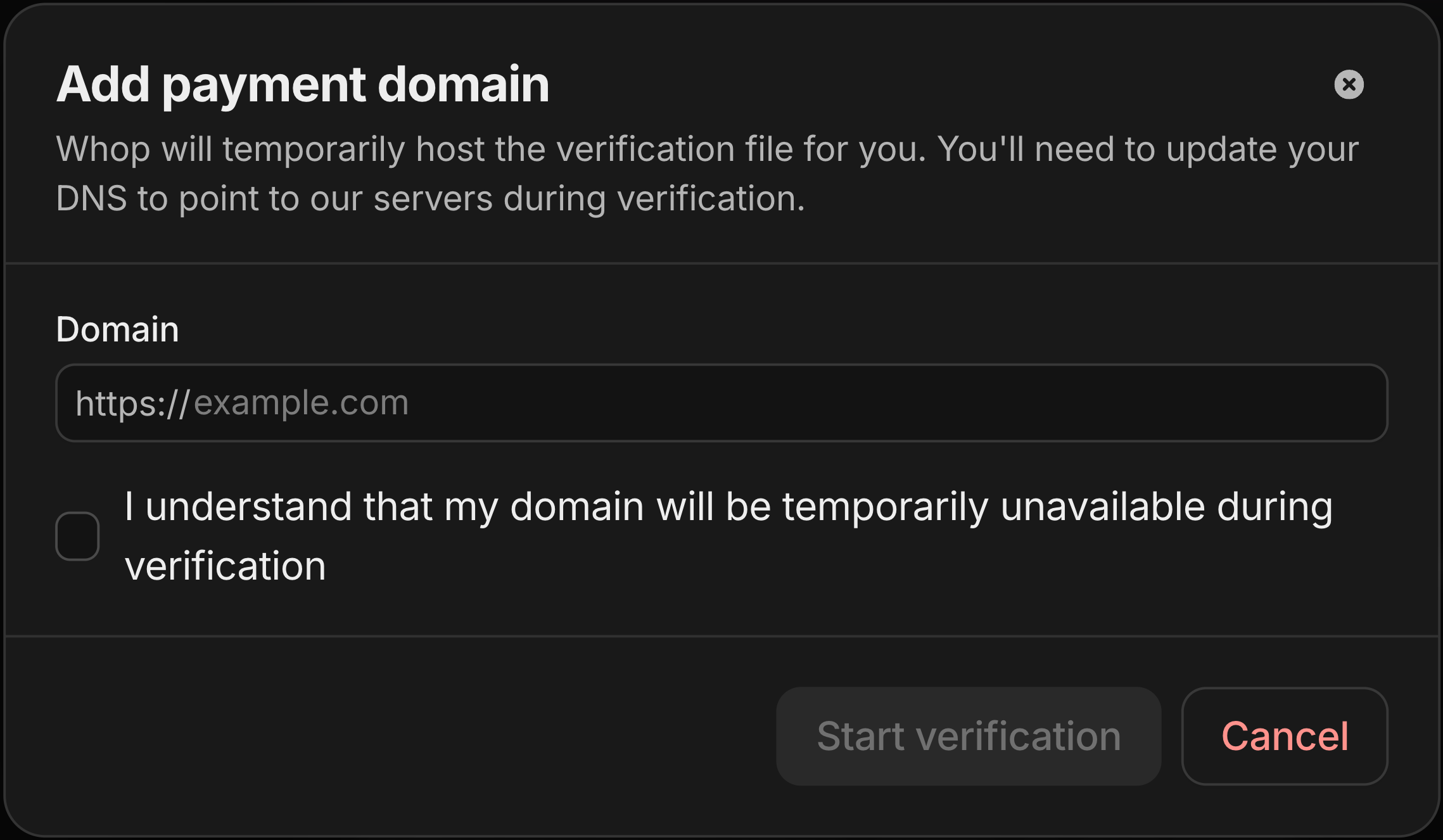
 Enter the domain where you're hosting the embedded checkout (e.g., `checkout.yoursite.com` or `yoursite.com`). You'll need to acknowledge that your domain will experience temporary downtime during the verification process by checking the confirmation checkbox, then click **Start verification**.
 ### Step 3: Add DNS records
This step will cause downtime for your domain. Your domain will point to
Whop's servers until you revert the DNS records after verification. **If you
haven't already, take a screenshot of your current DNS settings now** before
making any changes.
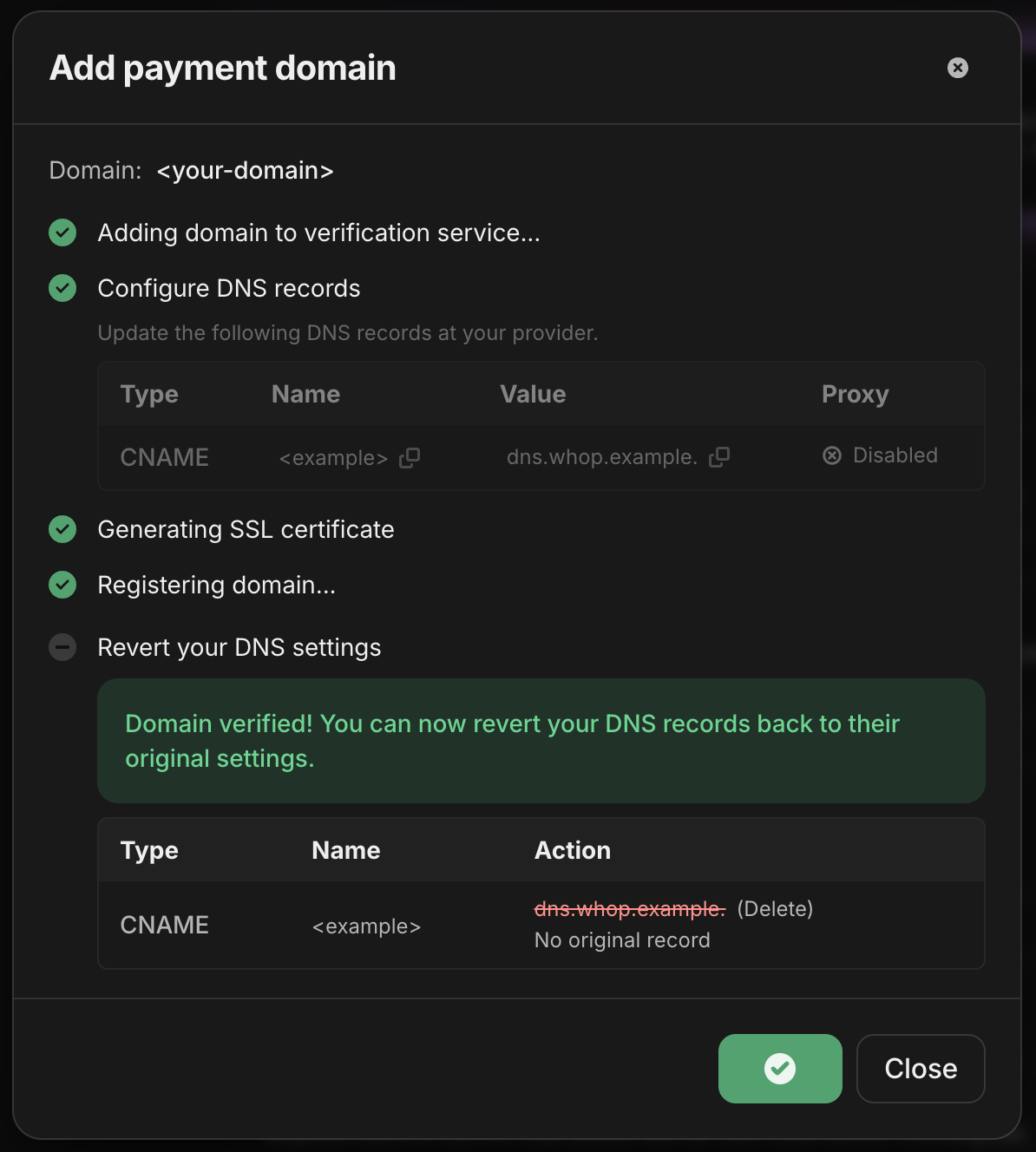
After adding your domain, you'll see a list of DNS records that need to be added to your domain's DNS settings. These typically include:
* **A record** or **CNAME record** - Points your domain to Whop's verification servers
* (optional) **TXT record** - Proves domain ownership
Use a low TTL (60-300 seconds) so you can revert quickly after verification.
### Step 3: Add DNS records
This step will cause downtime for your domain. Your domain will point to
Whop's servers until you revert the DNS records after verification. **If you
haven't already, take a screenshot of your current DNS settings now** before
making any changes.
After adding your domain, you'll see a list of DNS records that need to be added to your domain's DNS settings. These typically include:
* **A record** or **CNAME record** - Points your domain to Whop's verification servers
* (optional) **TXT record** - Proves domain ownership
Use a low TTL (60-300 seconds) so you can revert quickly after verification.
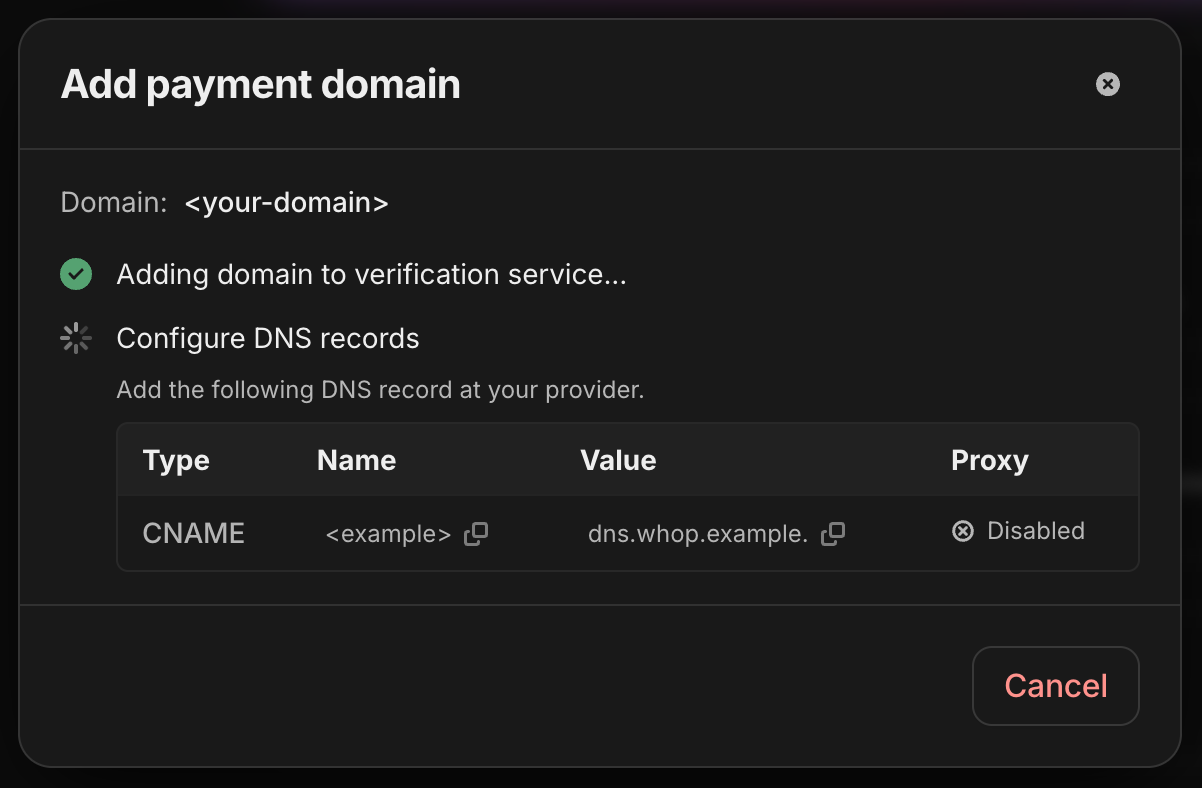 If your domain already has an A or CNAME record, **edit or replace it** with the values shown—don't add a second record alongside the existing one. You can find these settings in your DNS provider's dashboard (e.g., Cloudflare, Namecheap, GoDaddy, Route 53).
 ### Step 4: Wait for DNS propagation
DNS changes can take anywhere from a few minutes to 48 hours to propagate, though most changes are visible within 5-15 minutes. The verification wizard will automatically detect when your DNS records are properly configured.
### Step 5: Complete verification
Once the DNS records are verified, Whop will:
1. Issue an SSL certificate for your domain
2. Host the Apple Pay verification file
3. Register your domain with Apple
### Step 6: Revert DNS settings
After verification is complete, revert your DNS settings to point back to your original hosting. The Apple Pay verification will remain valid. The wizard will show you the records to delete and restore.
The revert instructions shown in the wizard are **best-effort** and may not be
100% accurate in all cases. Always refer to your own DNS backup (screenshot or
export) to ensure you restore the correct values. If you're unsure, check with
your hosting provider for the correct DNS configuration.
### Step 4: Wait for DNS propagation
DNS changes can take anywhere from a few minutes to 48 hours to propagate, though most changes are visible within 5-15 minutes. The verification wizard will automatically detect when your DNS records are properly configured.
### Step 5: Complete verification
Once the DNS records are verified, Whop will:
1. Issue an SSL certificate for your domain
2. Host the Apple Pay verification file
3. Register your domain with Apple
### Step 6: Revert DNS settings
After verification is complete, revert your DNS settings to point back to your original hosting. The Apple Pay verification will remain valid. The wizard will show you the records to delete and restore.
The revert instructions shown in the wizard are **best-effort** and may not be
100% accurate in all cases. Always refer to your own DNS backup (screenshot or
export) to ensure you restore the correct values. If you're unsure, check with
your hosting provider for the correct DNS configuration.
 ## Self-hosted verification
If you prefer to host the verification file yourself, you can do so by serving the Apple Pay merchant ID domain association file at a specific path on your domain.
### Step 1: Download the verification file
Download the [Apple Pay verification file](https://whop.com/.well-known/apple-platform-integrator/apple-developer-merchantid-domain-association).
### Step 2: Host the file
Host this file at the following path on your domain:
```
https:///.well-known/apple-developer-merchantid-domain-association
```
The file must be:
* Served over HTTPS
* Accessible without authentication
* Served with the correct content (no modifications)
Place the file in your `public` folder:
```
public/
└── .well-known/
└── apple-developer-merchantid-domain-association
```
Add a location block to serve the file:
```nginx theme={null}
location /.well-known/apple-developer-merchantid-domain-association {
alias /path/to/apple-developer-merchantid-domain-association;
default_type application/octet-stream;
}
```
Create a `vercel.json` with a rewrite rule that proxies to the Whop-hosted file:
```json theme={null}
{
"rewrites": [
{
"source": "/.well-known/apple-developer-merchantid-domain-association",
"destination": "https://whop.com/.well-known/apple-platform-integrator/apple-developer-merchantid-domain-association"
}
]
}
```
Place the file in your output directory:
```
dist/
└── .well-known/
└── apple-developer-merchantid-domain-association
```
### Step 3: Verify the file is accessible
Test that the file is accessible by visiting:
```
https:///.well-known/apple-developer-merchantid-domain-association
```
The file should download or display its contents without any errors.
### Step 4: Open payment domains settings
Navigate to your [checkout settings](https://whop.com/dashboard/settings/checkout/) and find the **Apple Pay for embedded checkout** section. Click **Configure** to open the domain management panel.
### Step 5: Register your domain
Click the **+** button (or **Add payment domain** if no domains exist yet). From the dropdown menu, select **Self-hosted verification**.
## Self-hosted verification
If you prefer to host the verification file yourself, you can do so by serving the Apple Pay merchant ID domain association file at a specific path on your domain.
### Step 1: Download the verification file
Download the [Apple Pay verification file](https://whop.com/.well-known/apple-platform-integrator/apple-developer-merchantid-domain-association).
### Step 2: Host the file
Host this file at the following path on your domain:
```
https:///.well-known/apple-developer-merchantid-domain-association
```
The file must be:
* Served over HTTPS
* Accessible without authentication
* Served with the correct content (no modifications)
Place the file in your `public` folder:
```
public/
└── .well-known/
└── apple-developer-merchantid-domain-association
```
Add a location block to serve the file:
```nginx theme={null}
location /.well-known/apple-developer-merchantid-domain-association {
alias /path/to/apple-developer-merchantid-domain-association;
default_type application/octet-stream;
}
```
Create a `vercel.json` with a rewrite rule that proxies to the Whop-hosted file:
```json theme={null}
{
"rewrites": [
{
"source": "/.well-known/apple-developer-merchantid-domain-association",
"destination": "https://whop.com/.well-known/apple-platform-integrator/apple-developer-merchantid-domain-association"
}
]
}
```
Place the file in your output directory:
```
dist/
└── .well-known/
└── apple-developer-merchantid-domain-association
```
### Step 3: Verify the file is accessible
Test that the file is accessible by visiting:
```
https:///.well-known/apple-developer-merchantid-domain-association
```
The file should download or display its contents without any errors.
### Step 4: Open payment domains settings
Navigate to your [checkout settings](https://whop.com/dashboard/settings/checkout/) and find the **Apple Pay for embedded checkout** section. Click **Configure** to open the domain management panel.
### Step 5: Register your domain
Click the **+** button (or **Add payment domain** if no domains exist yet). From the dropdown menu, select **Self-hosted verification**.
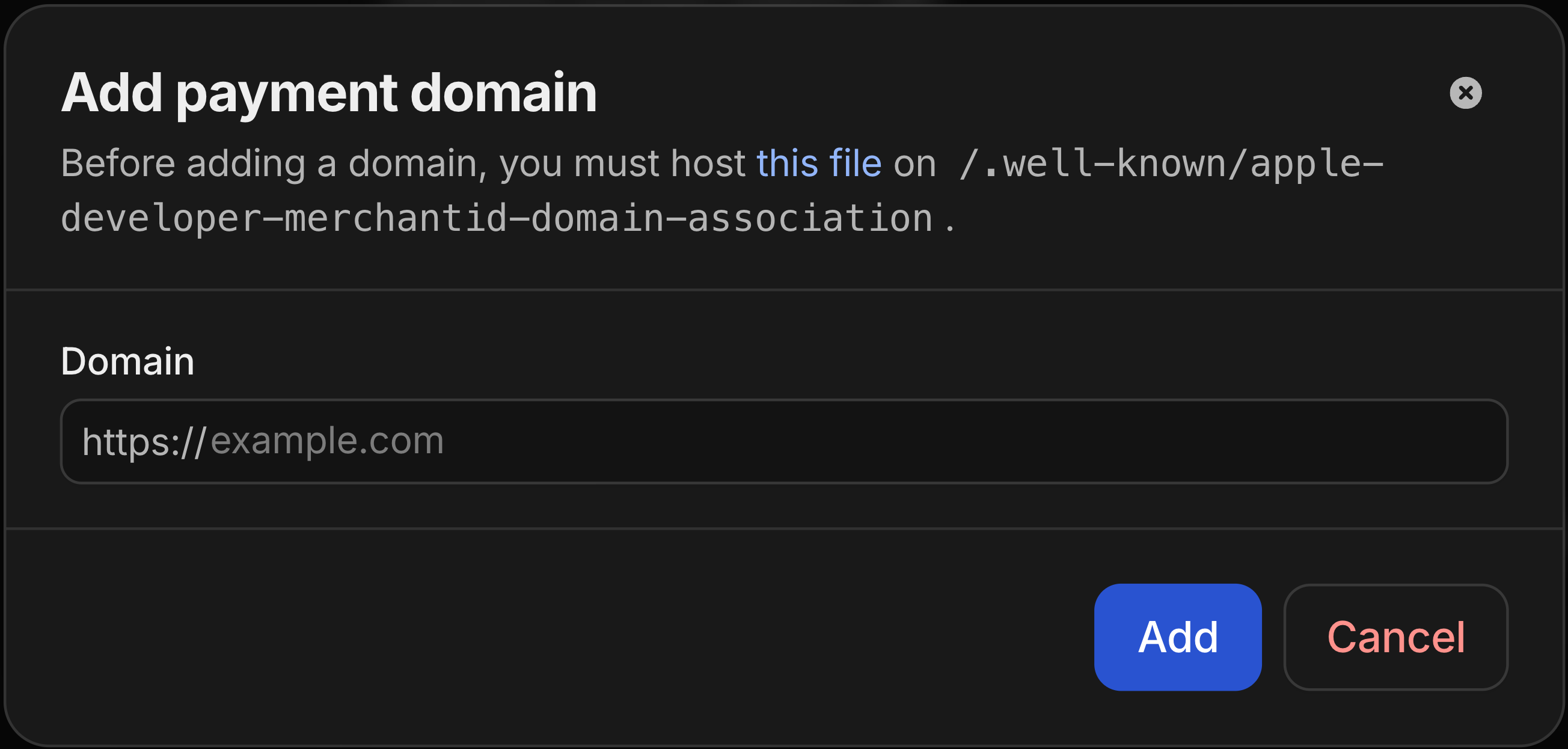
 Enter your domain. Whop will verify that the file is accessible before registering your domain with Apple.
 ## Troubleshooting
* Ensure your domain is fully verified in the payment domains settings -
Check that you're using `@whop/checkout@0.0.43` or later - Apple Pay only
appears on supported browsers (Safari) and devices (iOS, macOS) - Test on an
actual Apple device, not in a simulator - If using **Framer**, make sure you
are loading the checkout SDK via Custom Code in your site headers, not via
the Embed component. Framer's Embed component uses a `srcdoc` iframe which
Safari treats as an insecure context, blocking Apple Pay. See the [Framer
checkout
guide](/third-party-integrations/embedded-checkouts/framer-checkout) for the
correct setup.
* DNS propagation can take up to 48 hours in some cases - Use a tool like
[dnschecker.org](https://dnschecker.org) to verify your records have
propagated - Ensure you've added the records to the correct DNS zone - If
using Cloudflare, make sure the DNS record is set to "DNS only" (gray
cloud), not "Proxied" (orange cloud) during verification
* Ensure your DNS records are pointing to the correct values - Wait a few
minutes for the certificate to be issued - If the issue persists, try
removing and re-adding the domain
* Verify the file is in the correct location:
`/.well-known/apple-developer-merchantid-domain-association` - Check that
your web server is configured to serve files without extensions - Ensure the
`.well-known` directory is not blocked by your hosting configuration
## Next steps
Learn how to embed Whop checkout on your website
Create shareable checkout links for your products
## Troubleshooting
* Ensure your domain is fully verified in the payment domains settings -
Check that you're using `@whop/checkout@0.0.43` or later - Apple Pay only
appears on supported browsers (Safari) and devices (iOS, macOS) - Test on an
actual Apple device, not in a simulator - If using **Framer**, make sure you
are loading the checkout SDK via Custom Code in your site headers, not via
the Embed component. Framer's Embed component uses a `srcdoc` iframe which
Safari treats as an insecure context, blocking Apple Pay. See the [Framer
checkout
guide](/third-party-integrations/embedded-checkouts/framer-checkout) for the
correct setup.
* DNS propagation can take up to 48 hours in some cases - Use a tool like
[dnschecker.org](https://dnschecker.org) to verify your records have
propagated - Ensure you've added the records to the correct DNS zone - If
using Cloudflare, make sure the DNS record is set to "DNS only" (gray
cloud), not "Proxied" (orange cloud) during verification
* Ensure your DNS records are pointing to the correct values - Wait a few
minutes for the certificate to be issued - If the issue persists, try
removing and re-adding the domain
* Verify the file is in the correct location:
`/.well-known/apple-developer-merchantid-domain-association` - Check that
your web server is configured to serve files without extensions - Ensure the
`.well-known` directory is not blocked by your hosting configuration
## Next steps
Learn how to embed Whop checkout on your website
Create shareable checkout links for your products