> ## Documentation Index
> Fetch the complete documentation index at: https://docs.whop.com/llms.txt
> Use this file to discover all available pages before exploring further.
# Create a waitlist
> Have people join a waitlist before they can access your whop
A waitlist allows you to control who joins your whop. People apply to join, you review them, then approve the ones you want.
You can view and manage all your waitlist entries by going to your Dashboard > Waitlists.
## How to create a waitlist checkout option
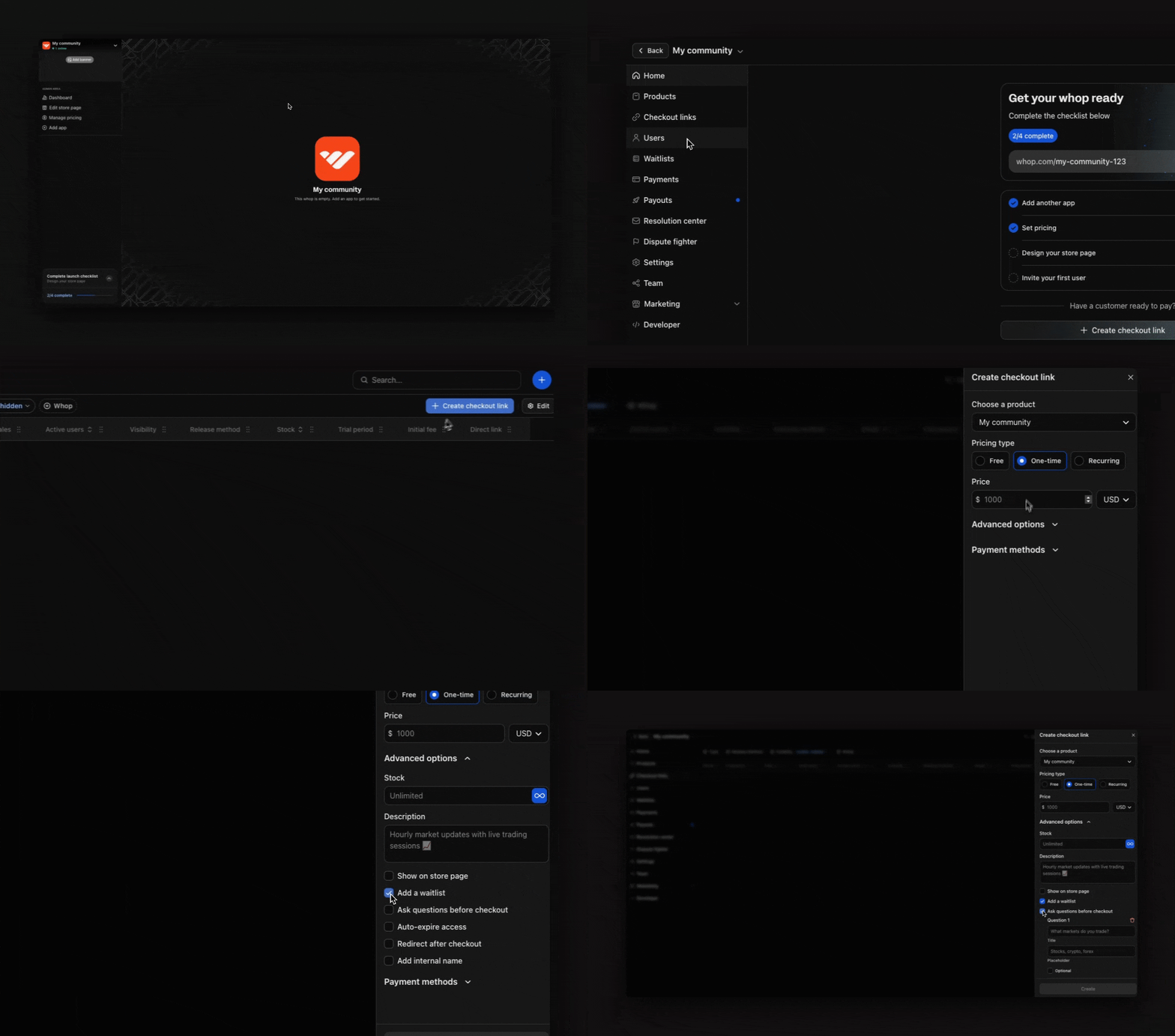
**To set up a waitlist for your whop:**
1. Go to your **Dashboard** > **Checkout links**
2. Click **+ Create checkout link**
3. Toggle **Advanced options** and click **Add a waitlist**
4. Click **Create**
Anyone who joins through your checkout link will now be added to the waitlist instead of getting immediate access.
 ## How to add questions to your waitlist
Pro tip: Add required questions for customers to answer before joining your waitlist. This will help qualify potential members and assess if they’re a good fit for your whop.
To add questions to your waitlist:
* Go to **Dashboard** > **Checkout links**
* Find your waitlist link and click the 3 dots (⋮)
* Click **Edit**
* Under **Advanced options**, click **Ask questions before checkout**
* Add your question titles and placeholder text
* Click **Update checkout link**
## How to approve/deny waitlist entries
Go to **Dashboard > Waitlists** to manage your waitlist. From here, you can:
* **Approve** (thumbs up button) or **deny** (thumbs down button) individual users
* **Admit all entries** at once by clicking the **+ Admit all entries** button
* **Export entries** by clicking the **Export** button in the top right
* **Contact users** on your waitlist via DM or email
When you approve someone, they'll automatically get access to your whop and receive a notification.
## When to use a waitlist
Waitlists work great when you want to:
* **Build anticipation while you're still creating**: Collect emails, build an audience, and validate demand without opening access right away.
* **Qualify potential customers**: Add custom questions to qualify leads before giving them access.
* **Create exclusivity for your community**: When people have to apply and wait for approval, it makes your whop feel more valuable and desirable.
* **Launch a limited beta** — Control who gets early access by reviewing applicants before letting them in. Perfect for testing with a smaller, high-quality group.
## How to add questions to your waitlist
Pro tip: Add required questions for customers to answer before joining your waitlist. This will help qualify potential members and assess if they’re a good fit for your whop.
To add questions to your waitlist:
* Go to **Dashboard** > **Checkout links**
* Find your waitlist link and click the 3 dots (⋮)
* Click **Edit**
* Under **Advanced options**, click **Ask questions before checkout**
* Add your question titles and placeholder text
* Click **Update checkout link**
## How to approve/deny waitlist entries
Go to **Dashboard > Waitlists** to manage your waitlist. From here, you can:
* **Approve** (thumbs up button) or **deny** (thumbs down button) individual users
* **Admit all entries** at once by clicking the **+ Admit all entries** button
* **Export entries** by clicking the **Export** button in the top right
* **Contact users** on your waitlist via DM or email
When you approve someone, they'll automatically get access to your whop and receive a notification.
## When to use a waitlist
Waitlists work great when you want to:
* **Build anticipation while you're still creating**: Collect emails, build an audience, and validate demand without opening access right away.
* **Qualify potential customers**: Add custom questions to qualify leads before giving them access.
* **Create exclusivity for your community**: When people have to apply and wait for approval, it makes your whop feel more valuable and desirable.
* **Launch a limited beta** — Control who gets early access by reviewing applicants before letting them in. Perfect for testing with a smaller, high-quality group.