> ## Documentation Index
> Fetch the complete documentation index at: https://docs.whop.com/llms.txt
> Use this file to discover all available pages before exploring further.
# Refunds
> Learn how to refund your customers on Whop
Process refunds instantly, set up auto-refunds, and manage your account balance on Whop.
## How to process a refund
There are three ways to refund a customer: through their **profile** (quickest method), **Payments**, or the **Resolution Center**.
1. Go to your **Dashboard**
2. Use the search bar at the top right to find the customer
3. Click on their profile
4. Scroll down to **Payments** and click **Refund** next to the specific payment
5. Choose your refund amount:
* Click **Refund** for the full amount
* Check **Partial refund** and enter the amount you want to refund
Great if you want to see all your transactions:
1. Go to **Dashboard** > **Payments**
2. Find the payment you want to refund
3. Click the 3 dots (⋮) next to the customer
4. Select **Refund** from the dropdown
5. Choose your refund amount:
* Click **Refund** for the full amount
* Check **Partial refund** and enter the amount you want to refund
1. Go to **Dashboard** > **Resolution Center**
2. Click on the case you want to resolve
3. Click **Accept** and your refund will be processed
Refunds are processed immediately, and you'll see the refund appear on the
customer's profile right away.
## Set up auto-refunds to save time
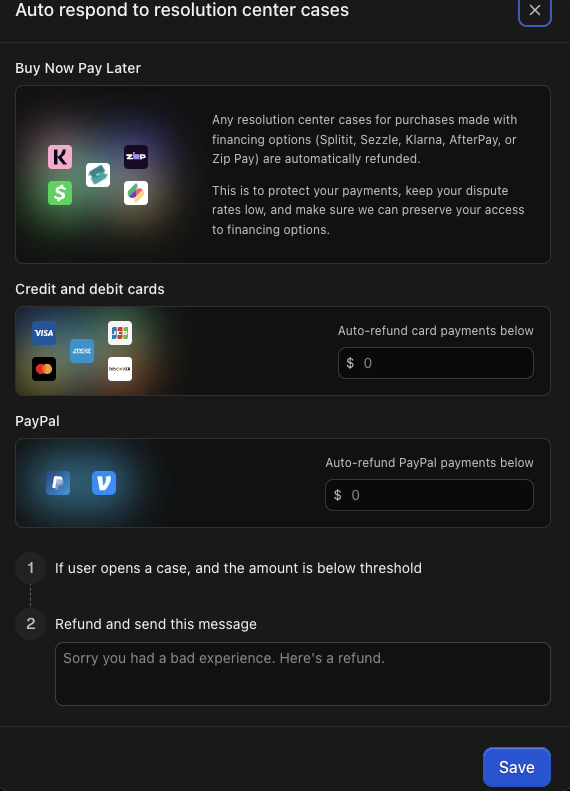
If you want to automatically handle smaller refund requests, you can set up auto-refunds for amounts under a certain threshold.
To set up auto-refunds:
1. Go to **Dashboard** > **Resolution Center**
2. Click **Auto respond**
3. Set your auto-refund thresholds:
* **Auto-refund card payments below**: Set the maximum amount for automatic card refunds
* **Auto-refund PayPal payments below**: Set the maximum amount for automatic PayPal refunds
4. Add a custom message (optional) that customers will see when they receive an auto-refund
5. Click **Save**
Resolution Center cases for purchases made with financing options are always
**automatically refunded.** This applies to Splitit, Sezzle, Klarna, AfterPay,
and Zip Pay. - Auto-refunds help protect your payments - Keep your dispute
rates low - Preserve your access to BNPL financing options Since these cases
are refunded automatically, no action is required on your end.
 ## What to do if you don't have sufficient funds
If your Whop account doesn't have sufficient funds for a refund, you'll need to add money to your account first.
### Top up your balance
To add funds to your account:
1. Go to **Dashboard** > **Balances**
2. Click **Top up +**
3. Enter the amount you want to add
4. Choose to pay from your personal balance or select another payment method
5. Click **Pay**
Always keep some money in your account so you can process refunds quickly.
This keeps customers happy and makes your business look professional.
### Set up minimum balance retention
If you use **Automatic withdrawals**, you can automatically keep money in your account for refunds:
1. Go to **Dashboard** > **Balances**
2. Click **Automatic withdrawals**
3. Set your withdrawal schedule (**Daily**, **Weekly**, or **Monthly**) and click **Continue**
4. Enter the minimum amount you want to keep in your account and click **Continue**
* We recommend keeping enough to cover at least two refunds at your typical price
5. Click **Confirm**
To edit the minimum amount if you already have automatic withdrawals setup, click the 3 dots on the top right of your **Payouts** page, and then click **Automatic withdrawals** and then **Edit automatic withdrawal settings**.
If you only use manual withdrawals, you can't set a minimum balance to retain
— you'll need to manage your balance manually.
## FAQs
When you refund someone, you pay back the full amount they originally paid — even though you received less after fees were deducted.
For example: If a customer paid \$100, you'll refund the full \$100 even though you only received around \$97 after Whop and processing fees.
This applies to both full and partial refunds. There are no additional fees to process a refund.
It depends on the customer's bank or payment method. Customers can typically expect to see refunds in their account within 3-7 business days after the refund is processed.
## What to do if you don't have sufficient funds
If your Whop account doesn't have sufficient funds for a refund, you'll need to add money to your account first.
### Top up your balance
To add funds to your account:
1. Go to **Dashboard** > **Balances**
2. Click **Top up +**
3. Enter the amount you want to add
4. Choose to pay from your personal balance or select another payment method
5. Click **Pay**
Always keep some money in your account so you can process refunds quickly.
This keeps customers happy and makes your business look professional.
### Set up minimum balance retention
If you use **Automatic withdrawals**, you can automatically keep money in your account for refunds:
1. Go to **Dashboard** > **Balances**
2. Click **Automatic withdrawals**
3. Set your withdrawal schedule (**Daily**, **Weekly**, or **Monthly**) and click **Continue**
4. Enter the minimum amount you want to keep in your account and click **Continue**
* We recommend keeping enough to cover at least two refunds at your typical price
5. Click **Confirm**
To edit the minimum amount if you already have automatic withdrawals setup, click the 3 dots on the top right of your **Payouts** page, and then click **Automatic withdrawals** and then **Edit automatic withdrawal settings**.
If you only use manual withdrawals, you can't set a minimum balance to retain
— you'll need to manage your balance manually.
## FAQs
When you refund someone, you pay back the full amount they originally paid — even though you received less after fees were deducted.
For example: If a customer paid \$100, you'll refund the full \$100 even though you only received around \$97 after Whop and processing fees.
This applies to both full and partial refunds. There are no additional fees to process a refund.
It depends on the customer's bank or payment method. Customers can typically expect to see refunds in their account within 3-7 business days after the refund is processed.