> ## Documentation Index
> Fetch the complete documentation index at: https://docs.whop.com/llms.txt
> Use this file to discover all available pages before exploring further.
# Setup
> Install and initialize the WhopCheckout SDK
Before your iOS app can accept payments, you need to install the SDK and initialize it with your Whop configuration. No backend is required.
## Installation
The WhopCheckout SDK is distributed via Swift Package Manager.
In Xcode, go to **File → Add Package Dependencies** and enter:
```
https://github.com/whopio/whopsdk-checkout-swift
```
Choose your preferred version rule:
* **Up to Next Major** - Recommended for most projects
* **Exact Version** - For strict version control
```swift theme={null}
import WhopCheckout
```
## Create an API Key
Before configuring the SDK, create an API key with the `iap:read` permission:
Navigate to [Whop Developer Settings](https://whop.com/dashboard/developer)
and select your app.
Click **Create API Key** and select **only** the `iap:read` permission.
Copy the generated API key. You'll use this to configure the SDK.
**Critical:** Only grant the `iap:read` permission to this API key. This
permission is specifically designed for client-side use and limits the key to
IAP operations only. Never use an API key with broader permissions in your iOS
app.
## SDK Configuration
Initialize the SDK once at app startup, typically in your `App` struct:
```swift theme={null}
import SwiftUI
import WhopCheckout
@main
struct MyApp: App {
var body: some Scene {
WindowGroup {
ContentView()
.environment(Checkout.shared)
.task {
do {
try await Checkout.shared.configure(
companyId: "biz_xxxxxxxxxxxxxx",
apiKey: "your-api-key-here",
planMappings: [
.init(whopId: "plan_xxxxx", appleId: "monthly_sub"),
.init(whopId: "plan_yyyyy", appleId: "yearly_sub")
]
)
} catch {
print("Failed to configure WhopCheckout: \(error)")
}
}
}
}
}
```
### Configuration Parameters
| Parameter | Description |
| -------------- | ------------------------------------------------------ |
| `companyId` | Your Whop company ID (starts with `biz_`) |
| `apiKey` | Your API key with **only** the `iap:read` permission |
| `planMappings` | Mapping of Whop plan IDs to Apple StoreKit product IDs |
```swift theme={null}
func configure(
companyId: String,
apiKey: String,
planMappings: [PlanMapping] = []
) async throws
```
**Throws:** `WhopCheckoutError` if configuration fails.
**Note:** Call this once at app startup. Access the shared instance via `Checkout.shared` and pass it through the SwiftUI environment.
### Plan Mappings
The `planMappings` parameter maps your Whop plans to Apple StoreKit products. Pass an empty array `[]` if you don't need StoreKit fallback.
In the US, the SDK uses Whop's web checkout (2.7% + \$0.30 fees). Outside the
US, it can fall back to StoreKit (Apple's 15-30% fees) if you provide plan
mappings. The plan mapping tells the SDK which Apple product corresponds to
each Whop plan.
**How it works:**
1. You create plans in Whop (e.g., "Monthly" for \$9.99/month)
2. You create matching products in App Store Connect with the same pricing and billing period
3. You map them together in `Checkout.shared.configure()`
```swift theme={null}
planMappings: [
.init(whopId: "plan_xxxxx", appleId: "com.yourapp.monthly"),
.init(whopId: "plan_yyyyy", appleId: "com.yourapp.yearly")
]
```
**Important:** Your Whop plans and Apple products must have matching pricing
and billing periods. If your Whop plan is $9.99/month, your Apple product
should also be $9.99/month.
1. Go to [App Store Connect](https://appstoreconnect.apple.com) and select your app
2. Navigate to **Monetization** → **Subscriptions** (or **In-App Purchases** for one-time)
3. Create a subscription group if you haven't already
4. Add products that match your Whop plans:
* Use a descriptive Product ID (e.g., `com.yourapp.monthly`)
* Set the same price as your Whop plan
* Set the same billing period (monthly, yearly, etc.)
5. Submit the products for review (they must be approved before testing)
You can test with sandbox accounts before products are approved. See [Apple's testing guide](https://developer.apple.com/documentation/storekit/in-app_purchase/testing_in-app_purchases_with_sandbox).
***
### Finding Your IDs
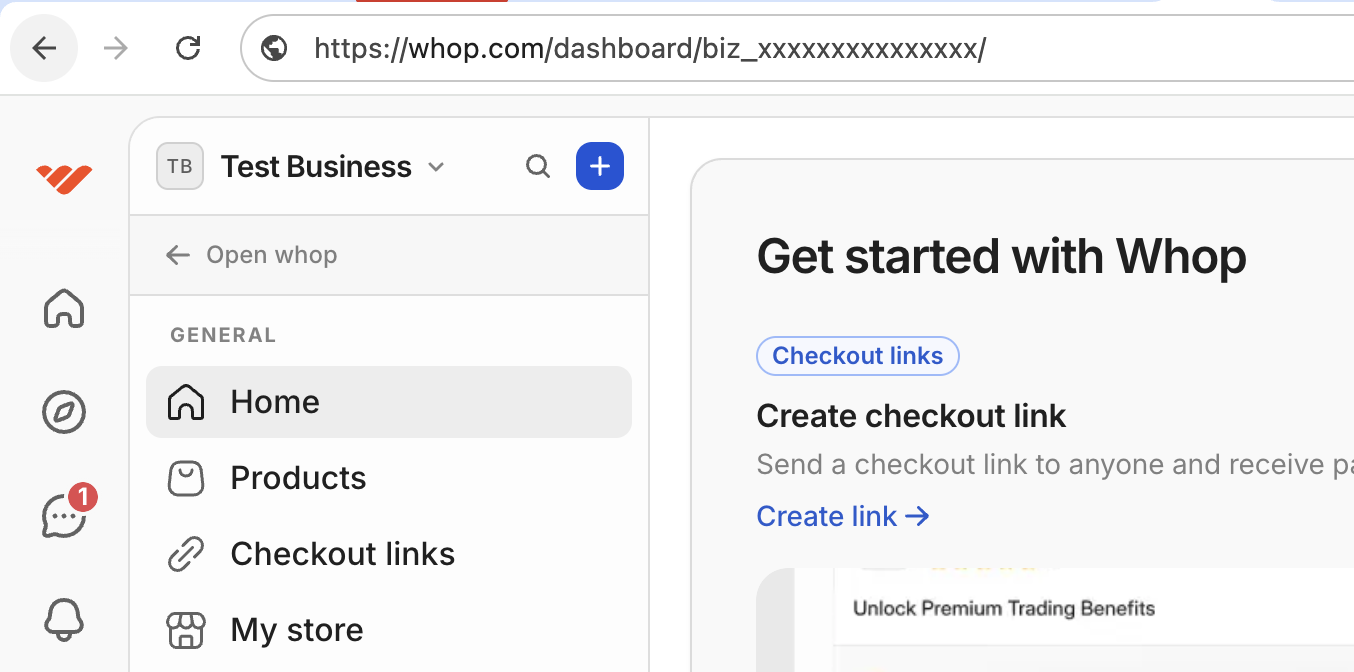
Your company ID is in the URL when viewing your Whop Dashboard:
```
https://whop.com/dashboard/biz_xxxxxxxxxxxxxx/...
^^^^^^^^^^^^^^^^^^
This is your company ID
```
 Plan IDs are found in your Whop Dashboard:
1. Go to [Whop Dashboard](https://whop.com/dashboard)
2. Click **Products** in the sidebar
3. Select the product containing your plans
4. Click on a **Plan** (e.g., "Monthly", "Yearly")
5. The Plan ID is shown in the URL and the plan details:
```
https://whop.com/dashboard/.../plans/plan_xxxxx
^^^^^^^^^^
This is your Plan ID
```
Plan IDs start with `plan_`. You'll use these in the SDK's `configure()` method to map Whop plans to Apple StoreKit products.
## Using the Environment
The SDK is an `@Observable` class, so you can pass it through SwiftUI's environment:
```swift theme={null}
struct ContentView: View {
@Environment(Checkout.self) var checkout
var body: some View {
if checkout.isInitialized {
// SDK is ready
PremiumContentView()
} else {
// Show loading state
ProgressView("Loading...")
}
}
}
```
## Refreshing Plans
After initialization, you can refresh plans on-demand to get updated pricing or availability:
```swift theme={null}
// Refresh and get updated plans
let plans = try await Checkout.shared.refreshPlans()
// Or just refresh (plans property updates automatically)
try await Checkout.shared.refreshPlans()
```
This is useful for:
* Updating prices after network recovery
* Reflecting server-side plan changes
* Implementing pull-to-refresh in subscription screens
## FAQ
Yes, but the SDK won't function until `configure()` completes. Check `isInitialized` before using other SDK methods.
Yes, as long as the API key **only** has the `iap:read` permission. This
permission is specifically designed for client-side use and limits what the
key can access. Never use an API key with broader permissions in your iOS app.
No. The SDK handles authentication directly using your API key. No backend
token endpoint is required.
Yes. All standard Whop webhooks are sent for purchases made through the SDK:
* `membership.went_valid` - When a subscription becomes active
* `membership.went_invalid` - When a subscription expires or is cancelled
* `payment.succeeded` - When a payment completes
* `payment.failed` - When a payment fails
This means you can use the same webhook handlers for SDK purchases as you do for web purchases. See the [Webhooks documentation](/developer/guides/webhooks) for details.
The SDK handles subscription status entirely client-side via `checkout.isSubscribed`. Webhooks are only needed if you have server-side logic that needs to know about purchases.
## Next Steps
Learn how to display plans and handle the checkout flow
Plan IDs are found in your Whop Dashboard:
1. Go to [Whop Dashboard](https://whop.com/dashboard)
2. Click **Products** in the sidebar
3. Select the product containing your plans
4. Click on a **Plan** (e.g., "Monthly", "Yearly")
5. The Plan ID is shown in the URL and the plan details:
```
https://whop.com/dashboard/.../plans/plan_xxxxx
^^^^^^^^^^
This is your Plan ID
```
Plan IDs start with `plan_`. You'll use these in the SDK's `configure()` method to map Whop plans to Apple StoreKit products.
## Using the Environment
The SDK is an `@Observable` class, so you can pass it through SwiftUI's environment:
```swift theme={null}
struct ContentView: View {
@Environment(Checkout.self) var checkout
var body: some View {
if checkout.isInitialized {
// SDK is ready
PremiumContentView()
} else {
// Show loading state
ProgressView("Loading...")
}
}
}
```
## Refreshing Plans
After initialization, you can refresh plans on-demand to get updated pricing or availability:
```swift theme={null}
// Refresh and get updated plans
let plans = try await Checkout.shared.refreshPlans()
// Or just refresh (plans property updates automatically)
try await Checkout.shared.refreshPlans()
```
This is useful for:
* Updating prices after network recovery
* Reflecting server-side plan changes
* Implementing pull-to-refresh in subscription screens
## FAQ
Yes, but the SDK won't function until `configure()` completes. Check `isInitialized` before using other SDK methods.
Yes, as long as the API key **only** has the `iap:read` permission. This
permission is specifically designed for client-side use and limits what the
key can access. Never use an API key with broader permissions in your iOS app.
No. The SDK handles authentication directly using your API key. No backend
token endpoint is required.
Yes. All standard Whop webhooks are sent for purchases made through the SDK:
* `membership.went_valid` - When a subscription becomes active
* `membership.went_invalid` - When a subscription expires or is cancelled
* `payment.succeeded` - When a payment completes
* `payment.failed` - When a payment fails
This means you can use the same webhook handlers for SDK purchases as you do for web purchases. See the [Webhooks documentation](/developer/guides/webhooks) for details.
The SDK handles subscription status entirely client-side via `checkout.isSubscribed`. Webhooks are only needed if you have server-side logic that needs to know about purchases.
## Next Steps
Learn how to display plans and handle the checkout flow